Worked example · 4 minute guide
How to brighten a scanned PDF
A dark scan can be difficult to read even when the letters are sharp. Brightness raises the lightness of the page; contrast increases the separation between dark and light areas. Start with small changes and judge the faintest text, not just the background. The sample here is a synthetic dark scan of a fictional checklist.
By SonuPDF · Updated October 28, 2026 · English
Open Adjust Colors/Contrast →Step-by-step walkthrough
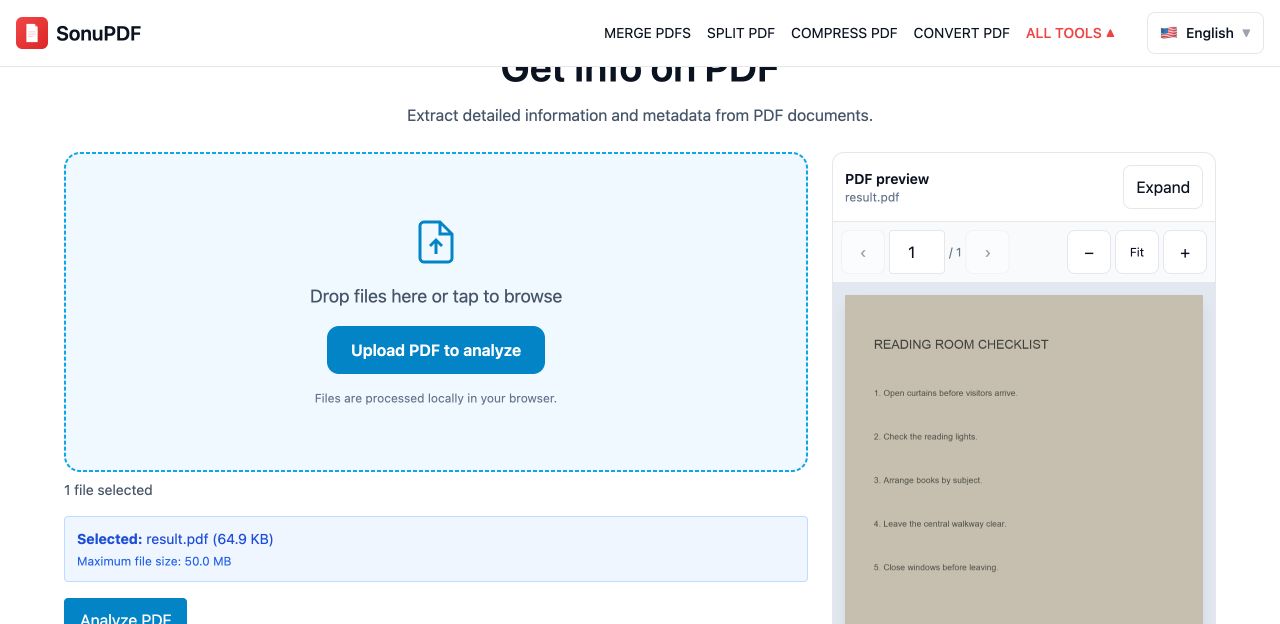
Screenshots show the SonuPDF website in Chrome. The final-step screenshot shows the completed example reopened in Get Info on PDF. The separate before/after images are rendered from the sample PDFs.
1.Open the color adjustment tool
Open Adjust Colors/Contrast in Chrome and select dark-scan.pdf. Wait for its preview to render before changing the controls.
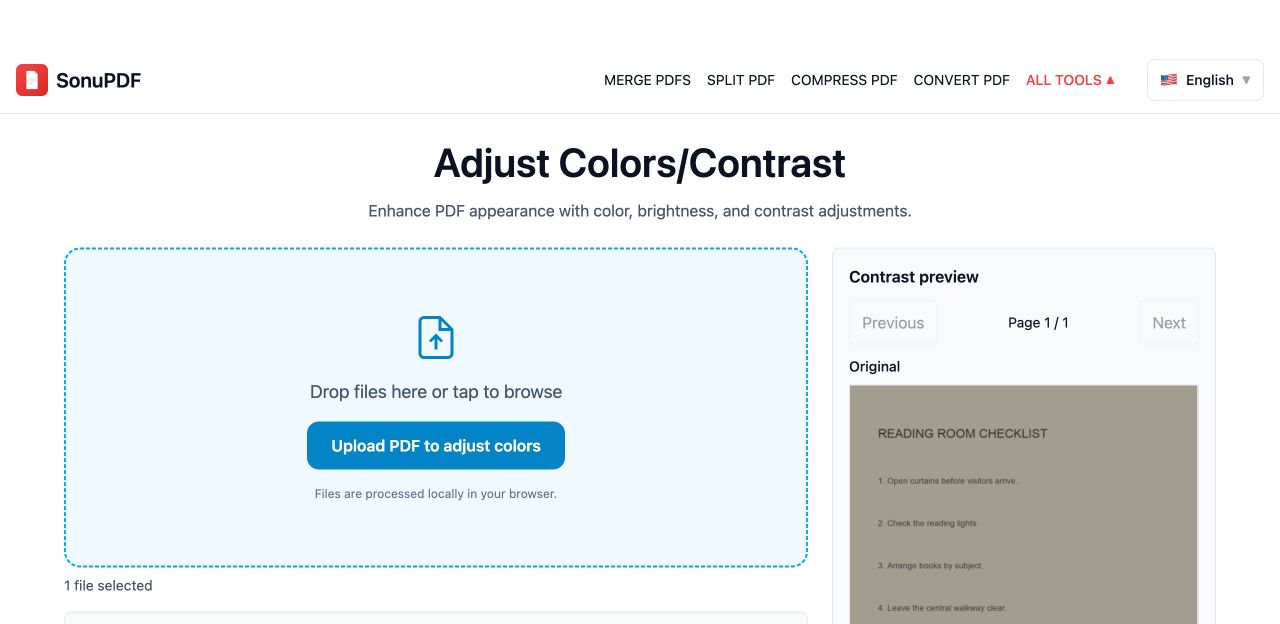
2.Increase brightness gradually
Set Brightness to 25 for this sample. Watch the page background and the smaller text together. A brighter background is not an improvement if faint letters disappear.
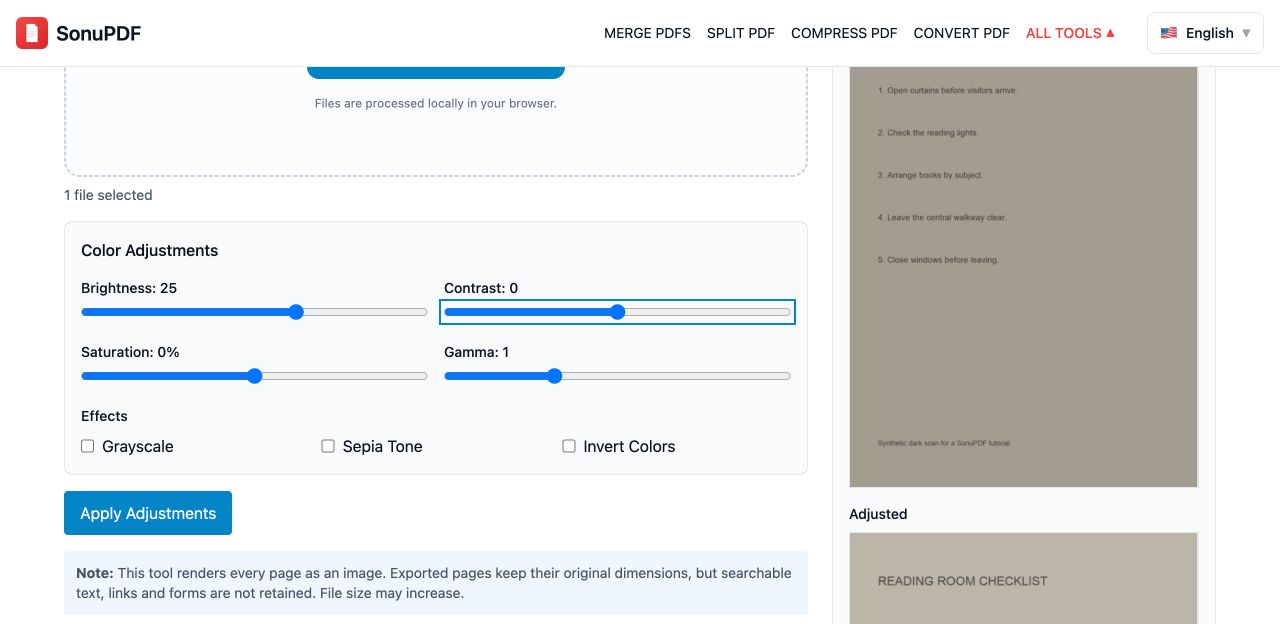
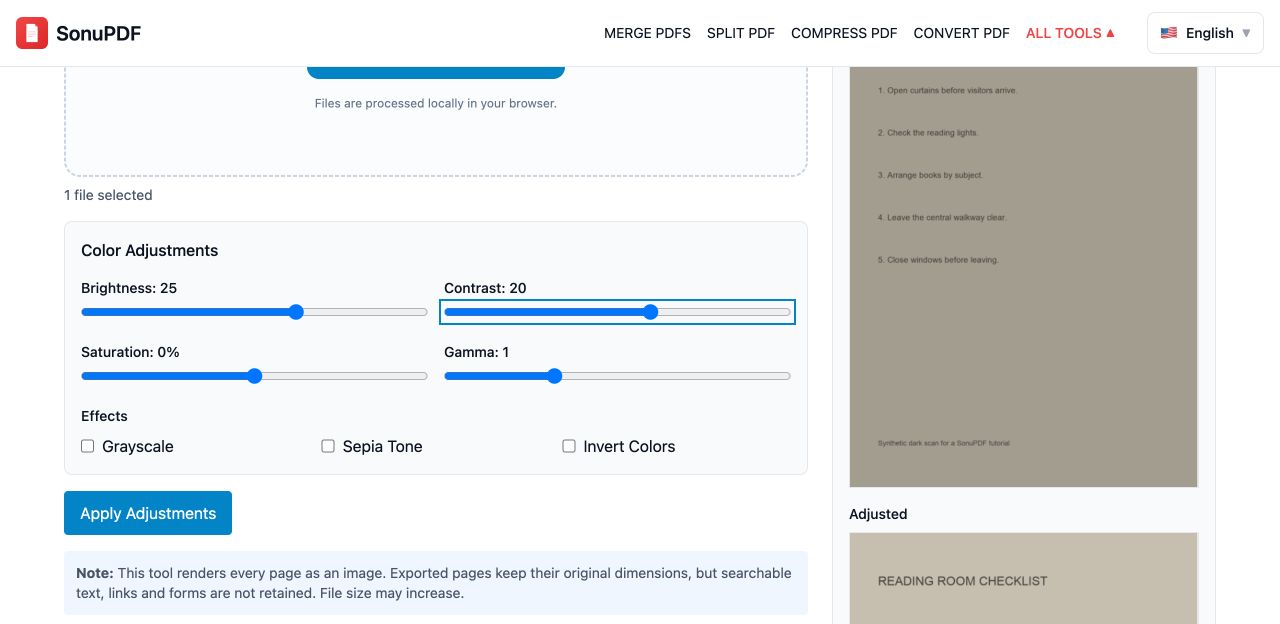
3.Balance contrast and compare
Set Contrast to 20, leave Gamma at 1 and Saturation at 0, and keep the effects off. These are sample settings, not a universal preset. Compare the original and adjusted preview before applying.
4.Apply the changes and inspect the download
Click Apply Adjustments. Open the adjusted PDF and inspect small text at a readable zoom. For a multi-page document, check several pages because one setting is applied throughout.
Before and after
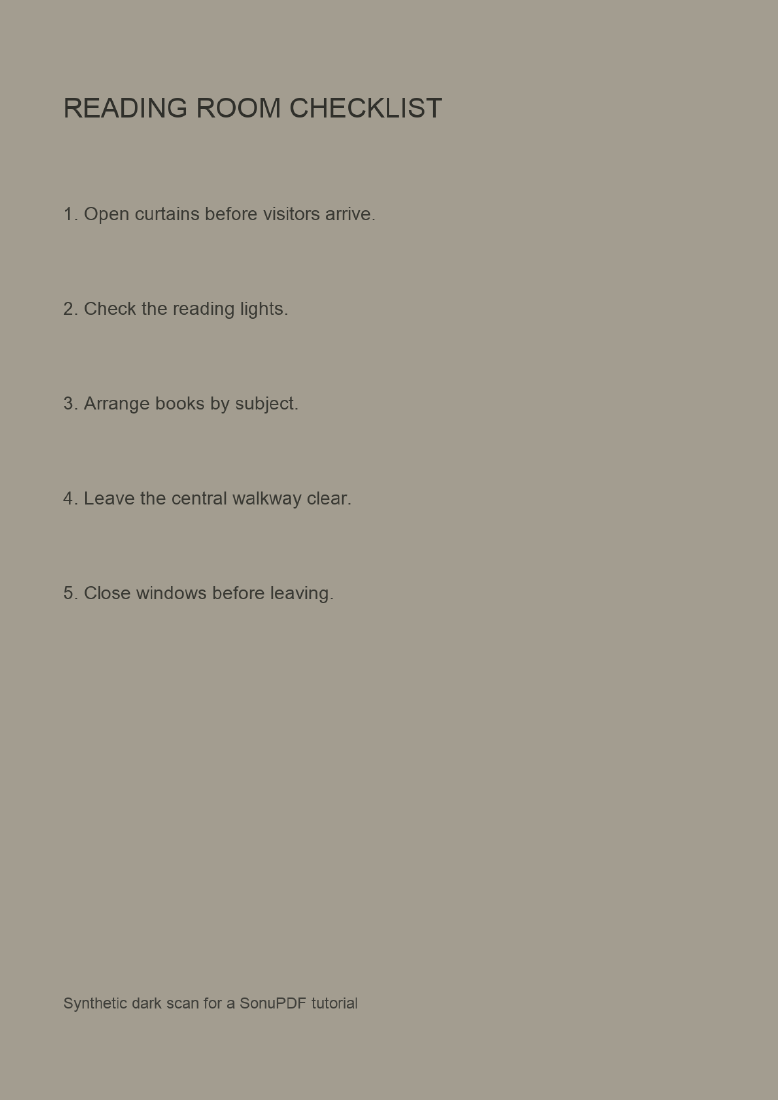
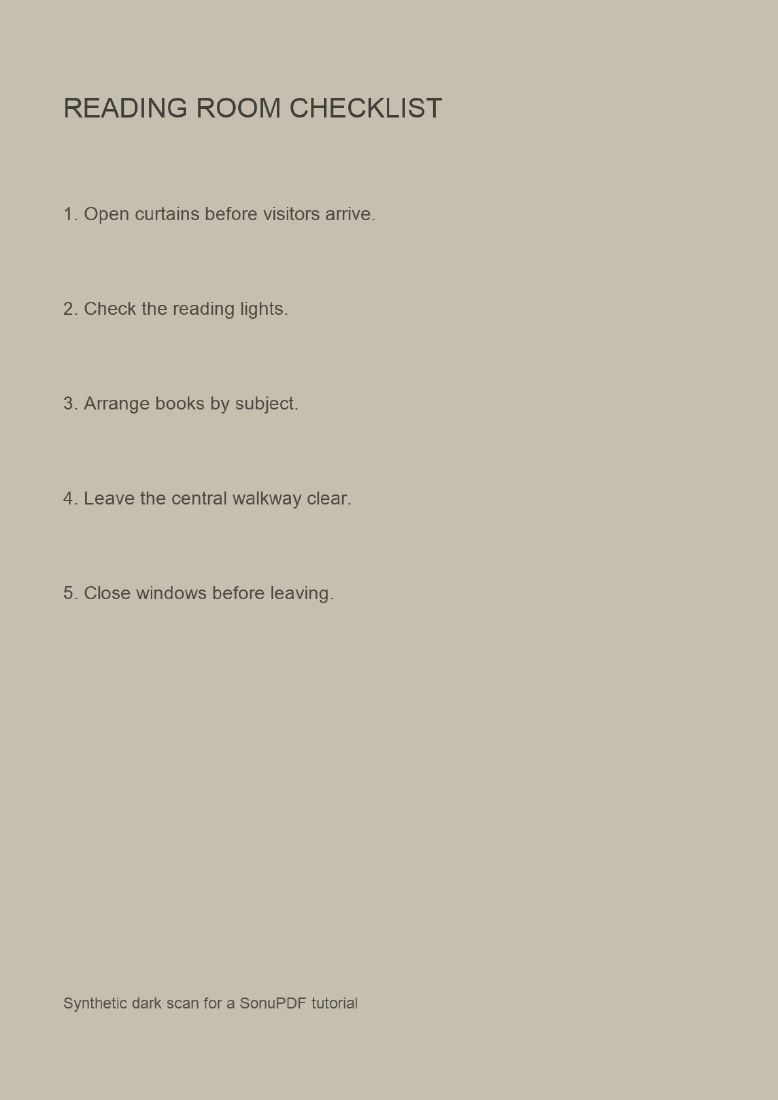
Compare the downloadable PDFs as well as these previews. Appearance and performance depend on your source document and device.
What to check before using the result
- The tool renders each page to an image and writes a new PDF. Selectable text, an existing OCR layer, live form fields and vector detail are not preserved as those original objects.
- It does not perform OCR, restore blurred letters, deskew a scan or recover detail that the original scanner did not capture.
- Increasing brightness or contrast too far can erase pale handwriting or clip highlights. Keep the source PDF and compare the weakest text.
- The same settings apply to all pages. Split a document first if some pages need different treatment.
- Image-based output can be larger than the original. Large scans consume browser memory, and editing a signed PDF invalidates its original signature.
Common questions
Is brightness the same as contrast?
No. Brightness shifts lightness; contrast changes the separation of tones. Use both gently and compare the result with the original.
Will the adjusted PDF remain searchable?
Do not rely on it. This tool produces image-based pages and does not recreate the original text or OCR layer. Keep a searchable original separately.