Worked example · 3 minute guide
How to remove PDF annotations
Review comments and highlights are often separate annotation objects in a PDF. SonuPDF can remove supported types without repainting the whole page. This walkthrough removes a yellow highlight and a sticky note from a fictional checklist while leaving the document text in place.
By SonuPDF · Updated October 28, 2026 · English
Open Remove Annotations →Step-by-step walkthrough
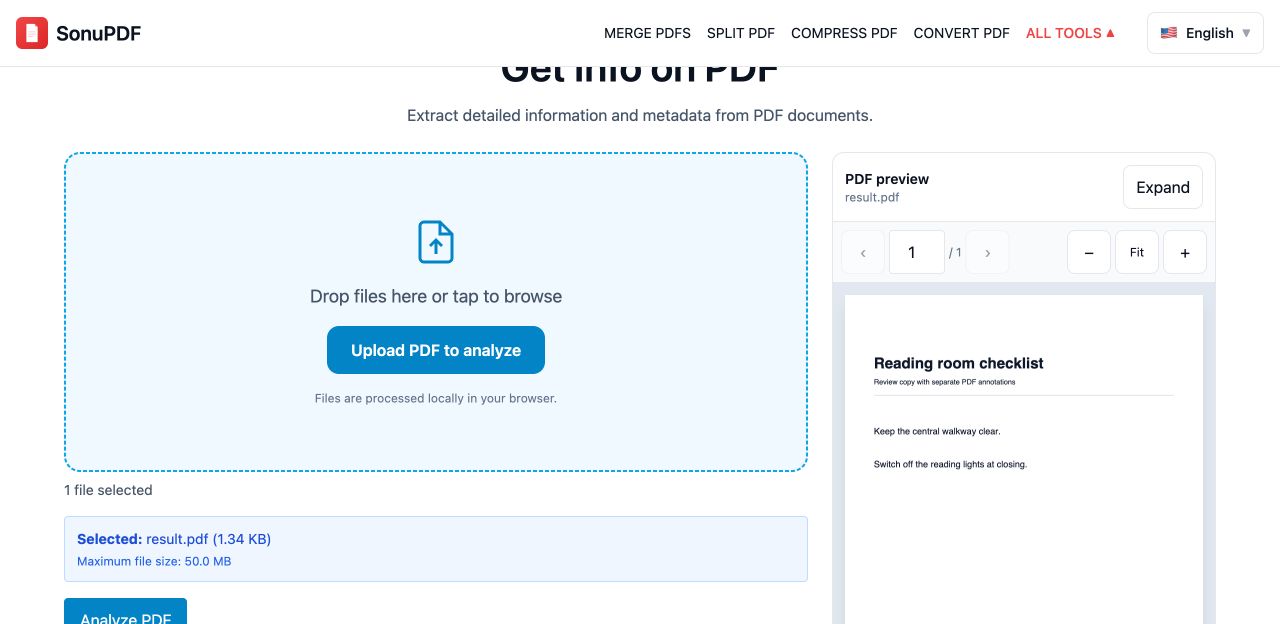
Screenshots show the SonuPDF website in Chrome. The final-step screenshot shows the completed example reopened in Get Info on PDF. The separate before/after images are rendered from the sample PDFs.
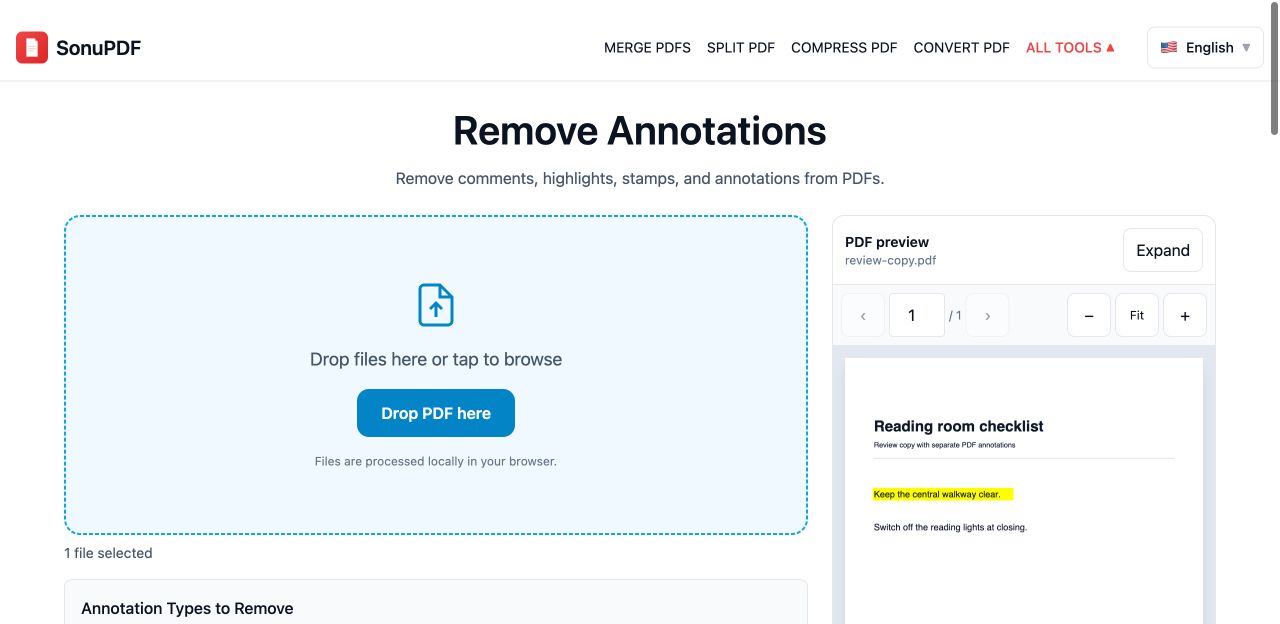
1.Select the annotated PDF
Open Remove Annotations and choose review-copy.pdf. Work on a copy if you need the review history later.
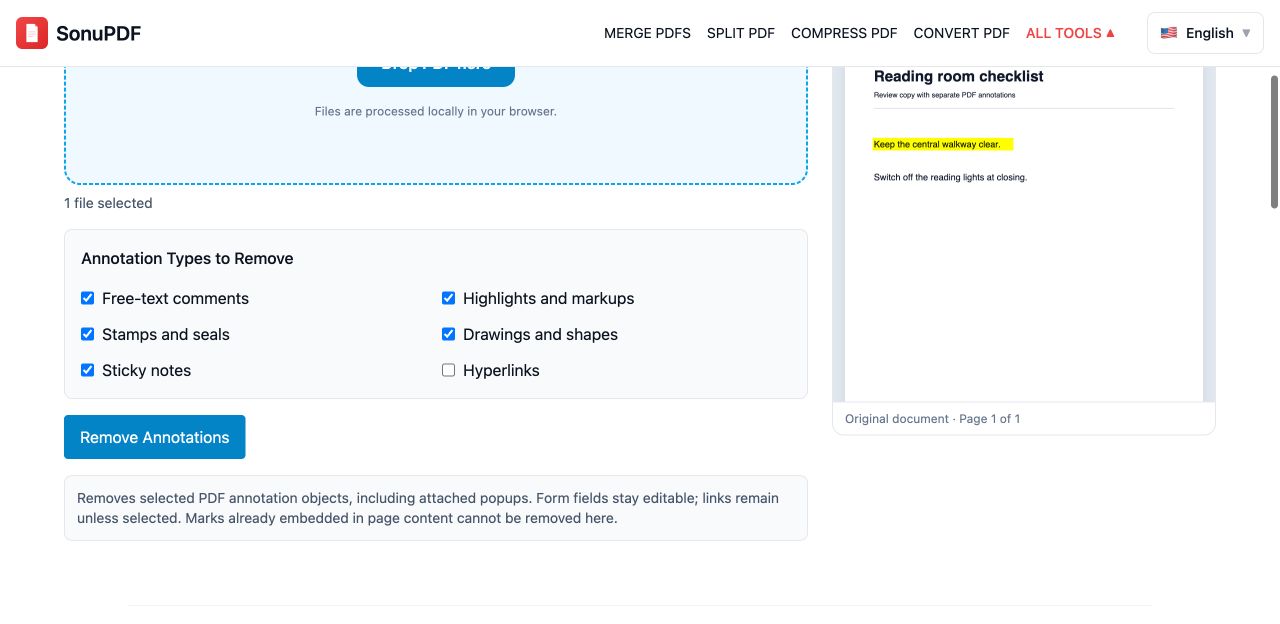
2.Choose which annotation types to remove
Keep Highlights & Markups and Sticky Notes selected for this sample. The default selection also removes supported free-text comments, stamps and drawings. Leave Hyperlinks unchecked if you want to keep clickable links.
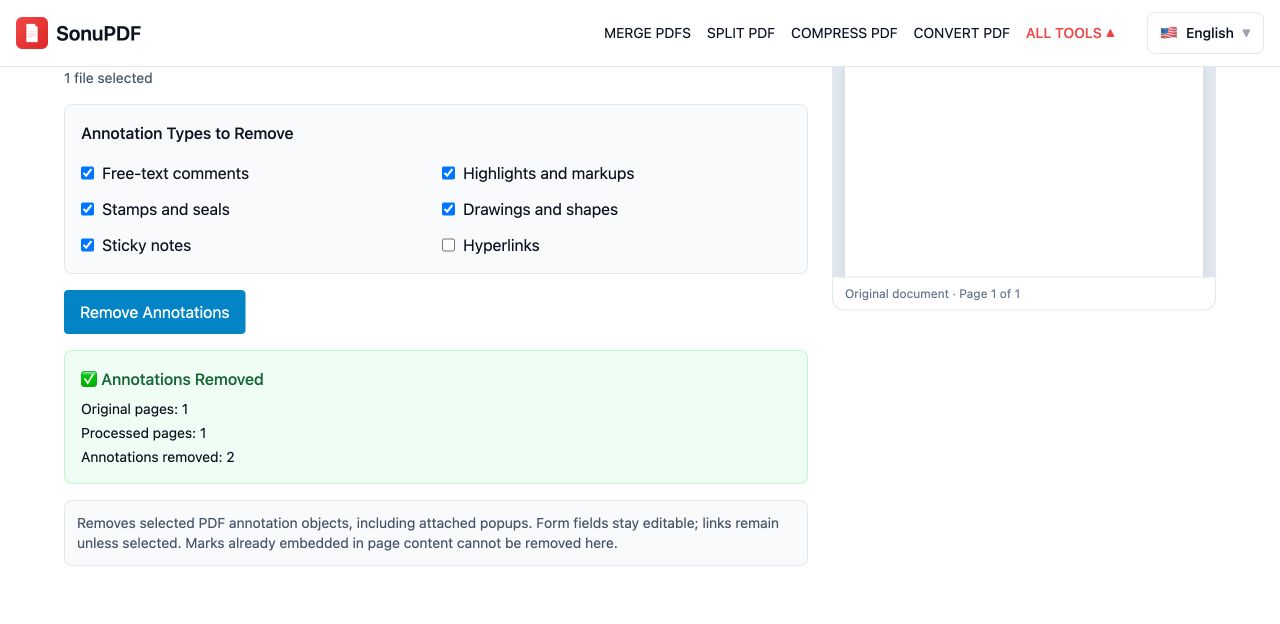
3.Remove annotations and check the report
Click Remove Annotations. The sample contains two supported annotations, so the result should report 2 removed. Downloaded output is a separate file; the source on your device is unchanged.
4.Open the cleaned PDF
Compare the downloaded file with the review copy. The yellow highlight and note should be gone, while both checklist sentences remain. Inspect important links and any forms before sharing.
Before and after
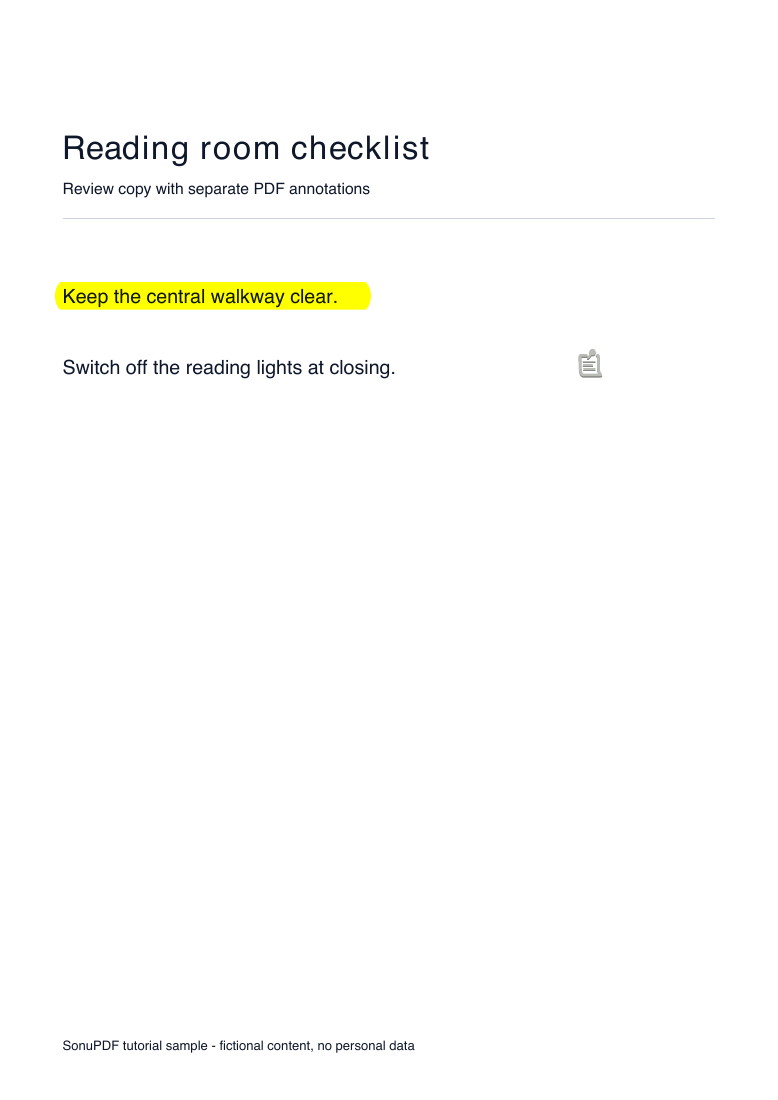
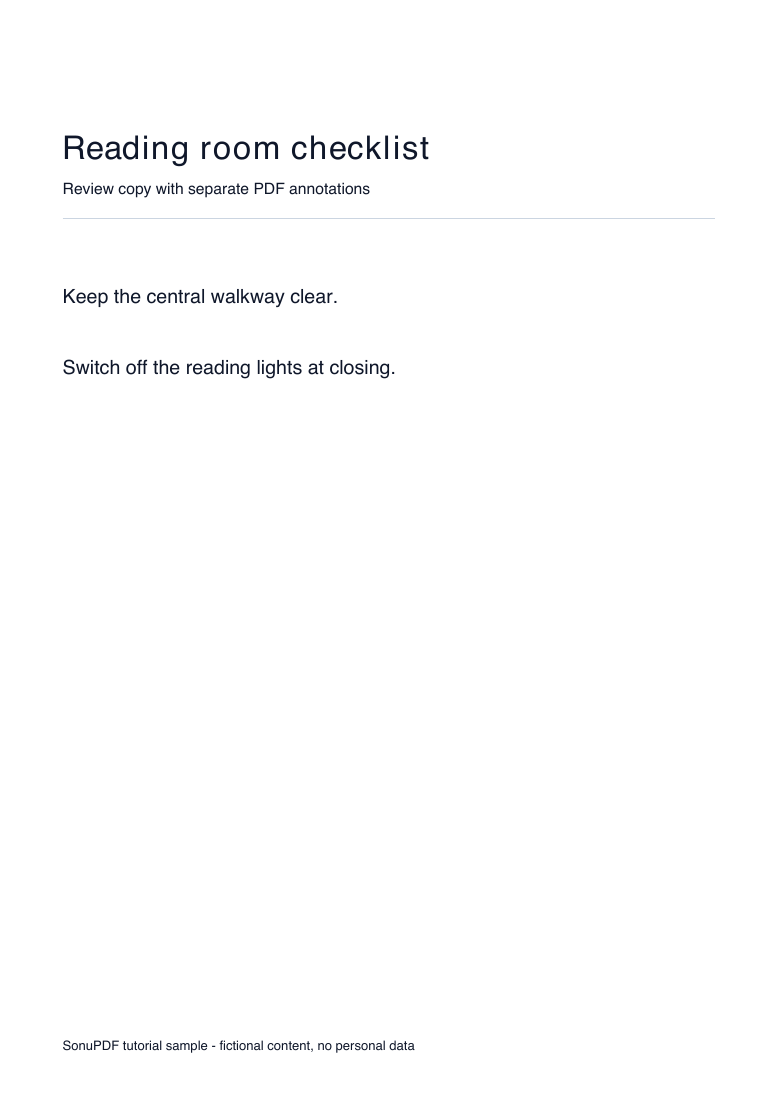
Compare the downloadable PDFs as well as these previews. Appearance and performance depend on your source document and device.
What to check before using the result
- Marks flattened into page content or baked into a scan are not separate annotations. This tool cannot remove them as comments or recover the text underneath.
- Only supported annotation types selected in the interface are removed. A zero count can mean the mark is flattened, unsupported or not selected.
- Form widgets are preserved rather than removed as ordinary review annotations. This tool is not a form-field remover.
- Removing visible annotations is not secure redaction or a guarantee that all private information, metadata or revision history has been sanitized.
- Keep the original review copy. Modifying a digitally signed PDF can invalidate its signature.
Common questions
Why is a highlight still visible?
It may be part of the page artwork or a scanned image rather than a PDF annotation. Check the removal count and the selected types; do not repeatedly process a file expecting flattened marks to disappear.
Can I keep hyperlinks?
Yes. Leave Hyperlinks unchecked. After downloading, test any links you need to retain.