Worked example · 6 minute guide
How to reorder PDF pages in Chrome
For a short document, you can change page order in Chrome using two existing SonuPDF tools: split the document into single-page files, then merge those files in your chosen order. This walkthrough changes a three-page reading pack from 1, 2, 3 to 2, 3, 1. It works on the website without installing an extension.
By SonuPDF · Updated October 28, 2026 · English
Open Split PDF →Open Merge PDFs →Step-by-step walkthrough
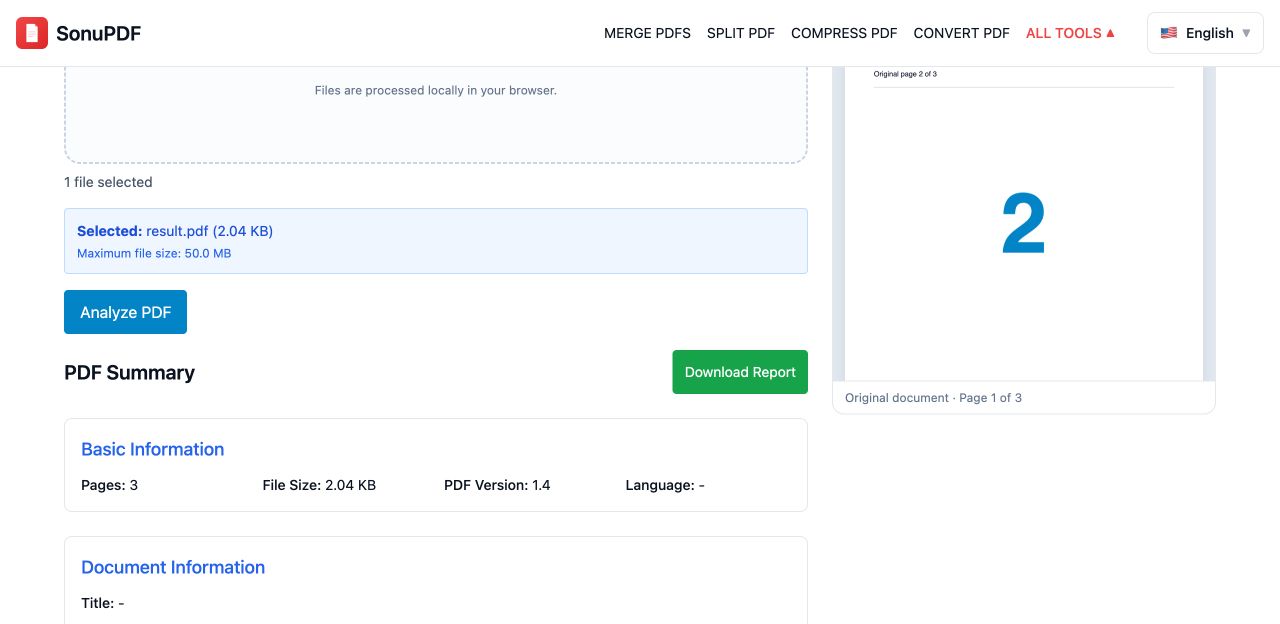
Screenshots show the SonuPDF website in Chrome. The final-step screenshot shows the completed example reopened in Get Info on PDF. The separate before/after images are rendered from the sample PDFs.
1.Split the source into individual pages
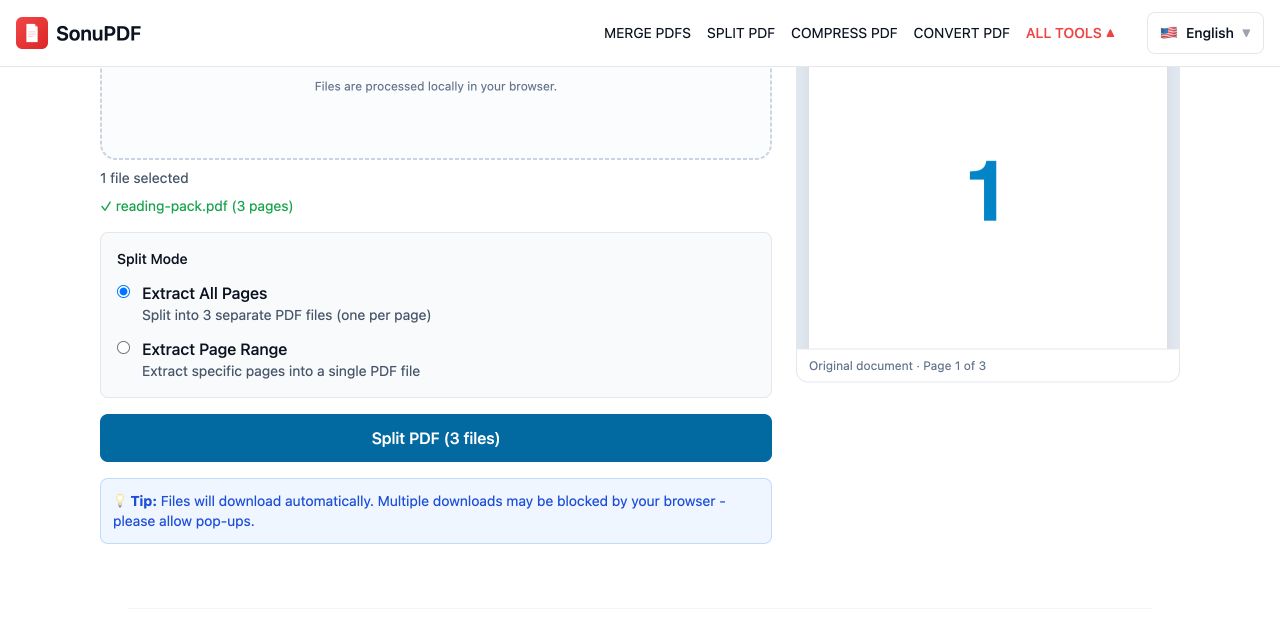
Open Split PDF, select reading-pack.pdf and choose Extract All Pages. Click Split PDF (3 files). Save the three files whose names end in _page_1.pdf, _page_2.pdf and _page_3.pdf. If Chrome blocks multiple downloads, use page ranges 1–1, 2–2 and 3–3 separately, then rename those downloads to reading-pack_page_1.pdf, reading-pack_page_2.pdf and reading-pack_page_3.pdf respectively. You can also use the separate page samples linked above.
2.Start the merge with the desired first page
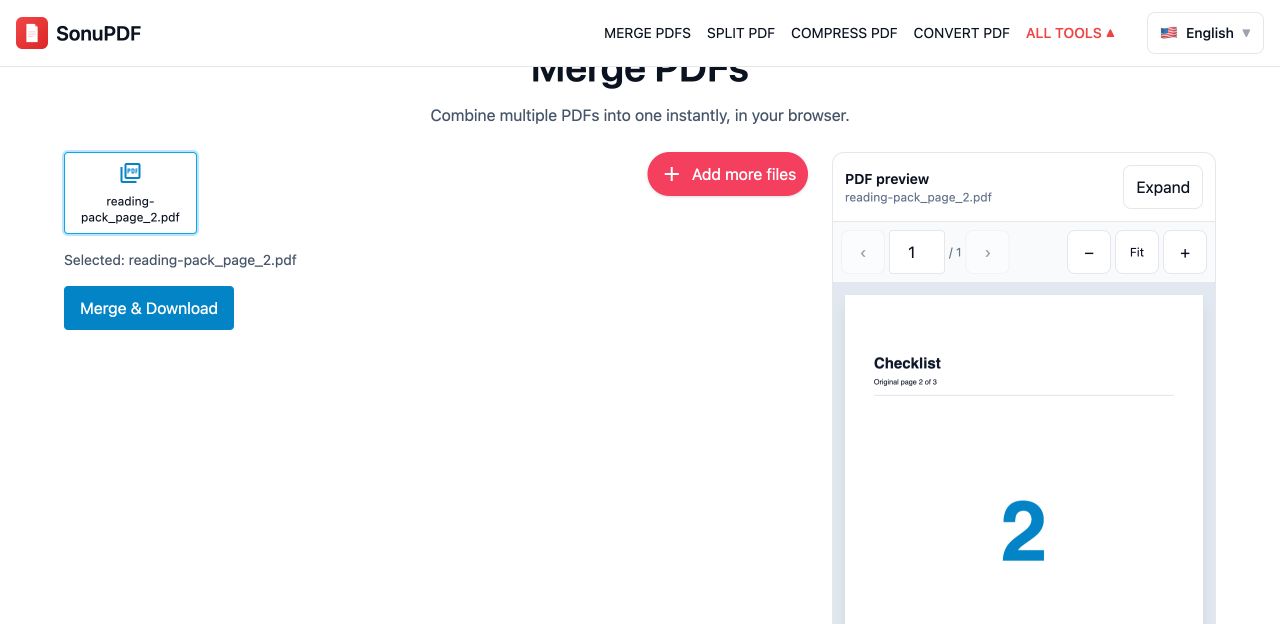
Open Merge PDFs and select only reading-pack_page_2.pdf. Selecting one file at a time avoids depending on the order your operating system gives a multi-file selection.
3.Append the remaining pages in order
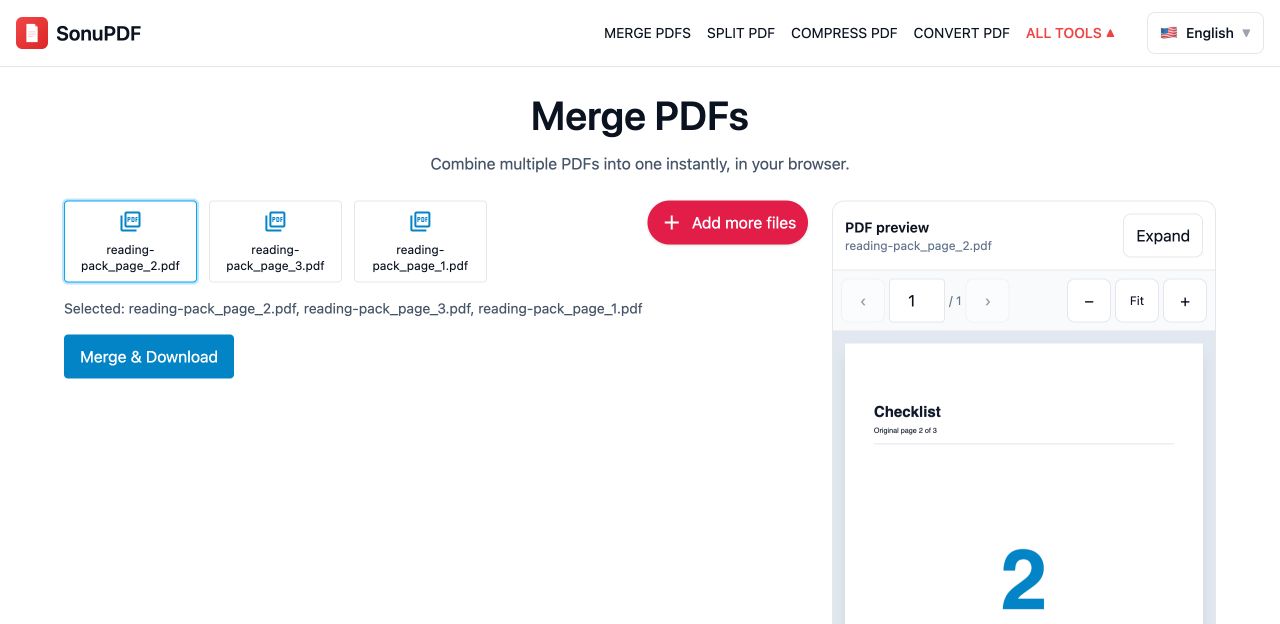
Use Add More Files to add page 3, then use it again to add page 1. Check the displayed filenames: page 2, page 3, page 1. The website appends each selection; clicking a file card changes its preview, not its order.
4.Merge, download and verify all pages
Click Merge & Download. Open the result and check that Checklist comes first, Notes second and Cover last. The before/after comparison below shows all three pages, and the downloadable result has the same order.
Before and after
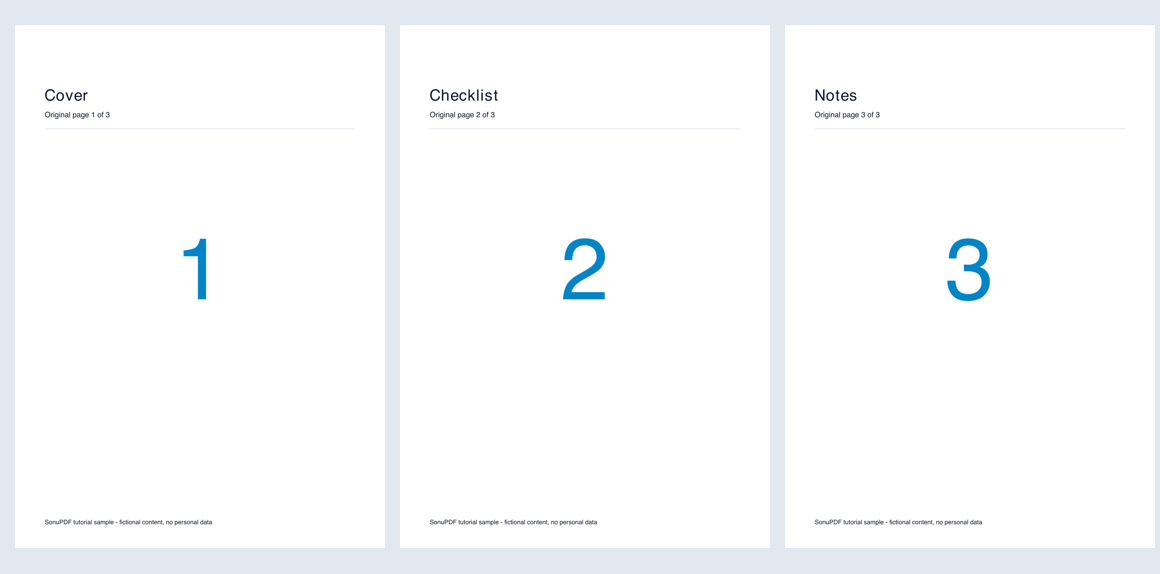
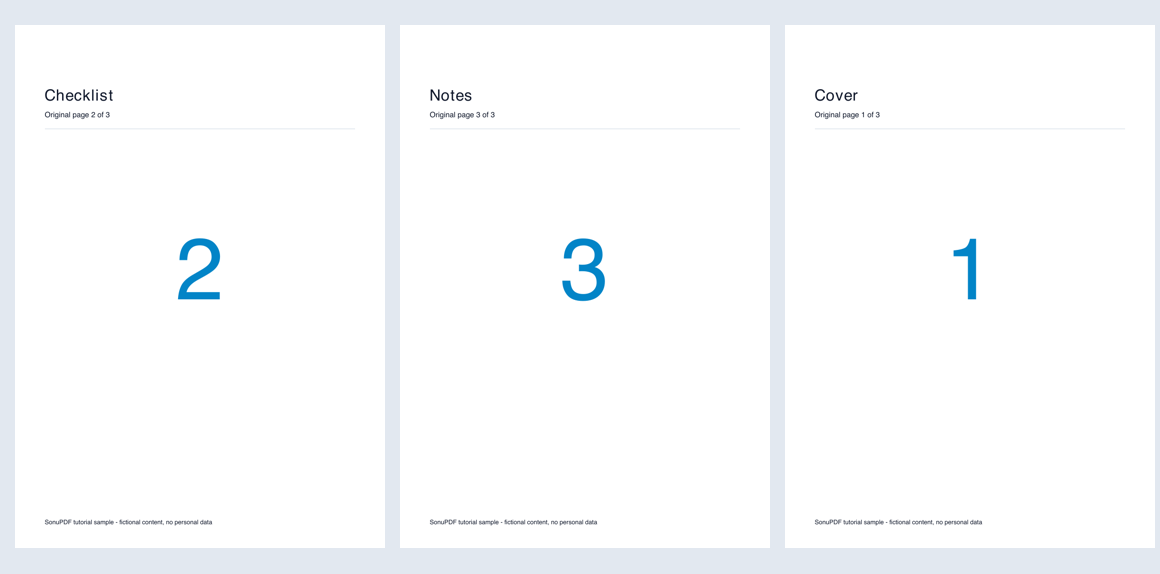
Compare the downloadable PDFs as well as these previews. Appearance and performance depend on your source document and device.
What to check before using the result
- This split-and-merge method is practical for short PDFs but creates temporary files. It is cumbersome for documents with many pages.
- The website merge screen does not offer drag-to-reorder controls. If you add a wrong file, reload the tool and select the files again in the correct order.
- Extract Pages is not a substitute for custom ordering: its current implementation sorts selected page numbers into ascending order.
- Page copying may alter bookmarks, form behavior and internal page links. Check complex documents and preserve the source. Digital signatures will not remain valid for a rewritten document.
- Chrome may ask whether to allow multiple downloads. You can instead download one page range at a time without changing that setting.
Common questions
Does the order I click files in a file picker matter?
Do not depend on it. File pickers can return their own ordering. Upload one page file at a time, and check SonuPDF’s displayed file list before merging.
Does this require the SonuPDF extension?
No. This tutorial uses the existing website tools in Chrome. It does not depend on Chrome Web Store availability.